From Power Button to Shell Prompt: The Complete Journey of the Linux OS Boot Process
A stage-by-stage look at what happens from the moment you press the power button to the moment your shell is ready for input
Introduction
Pressing the power button on a modern computer triggers a carefully orchestrated sequence of events spanning firmware, bootloaders, the kernel, and init systems. Each layer hands off to the next with increasing sophistication.
This post walks through every stage of that journey on a modern x86-64 Linux system, from the first CPU instruction executed out of reset to the login prompt waiting for your credentials.
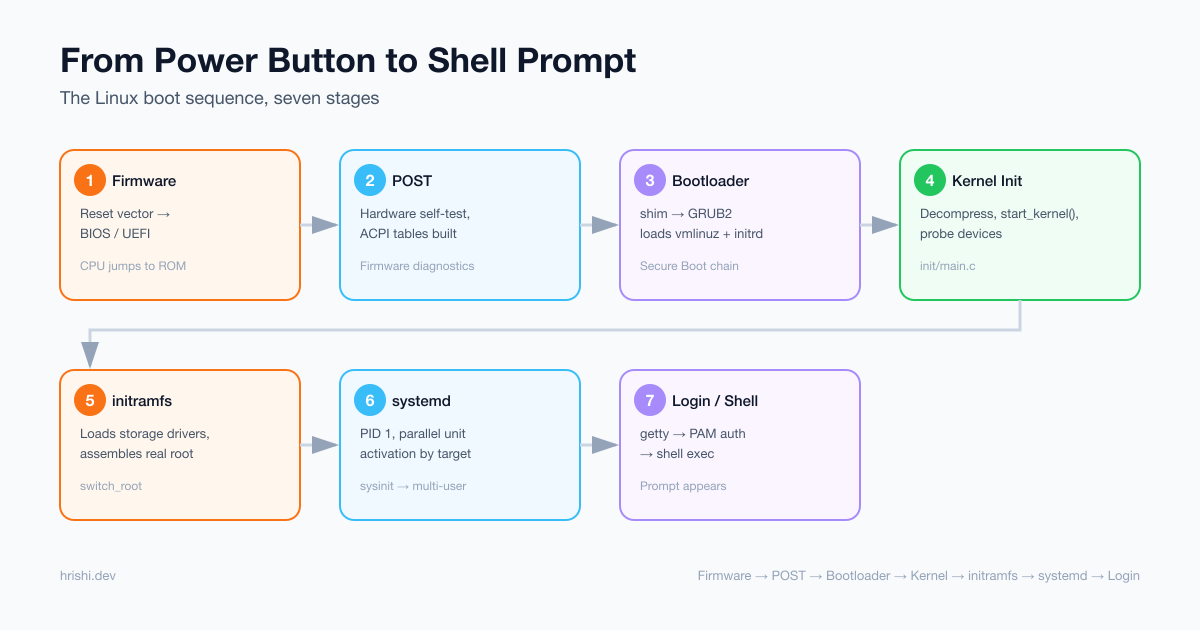
Table of Contents
- Stage 1: Reset Vector and Firmware (BIOS/UEFI)
- Stage 2: POST (Power-On Self-Test)
- Stage 3: Bootloader
- Stage 4: Kernel Initialization
- Stage 5: initramfs (Early Userspace)
- Stage 6: Init System (systemd)
- Stage 7: Login and Shell
- Putting It All Together
Stage 1: Reset Vector and Firmware (BIOS/UEFI)
The First Instruction
When power is applied, the CPU does not start executing from RAM: it’s empty at power-on. Instead, every processor has a hardwired reset vector mapped by the chipset to a ROM chip on the motherboard containing the firmware. The address is architecture-defined:
| Architecture | Reset vector |
|---|---|
| x86-64 |
0xFFFFFFF0, 16 bytes below the top of 32-bit address space, entered in 16-bit real mode |
| ARM64 (AArch64) | Configured via the RVBAR_EL3 register, entered at Exception Level 3 (EL3) |
On x86-64, the reset vector holds a JMP that transfers into the full firmware image. On ARM64, the SoC’s
trusted firmware (e.g., ARM Trusted Firmware-A) runs first at EL3 before handing off to UEFI at EL2/EL1.
BIOS vs. UEFI
BIOS (Basic Input/Output System) is the legacy firmware standard from the late 1970s. It operates in 16-bit real mode and relies on a 512-byte Master Boot Record (MBR) at the start of the boot disk. The MBR contains a first-stage bootloader and a partition table, all crammed into 512 bytes.
UEFI (Unified Extensible Firmware Interface), formalized by the UEFI Specification, replaced BIOS and brings several critical improvements:
| Feature | BIOS | UEFI |
|---|---|---|
| Mode at startup | 16-bit real mode | 32/64-bit protected mode |
| Boot partition | MBR (512 bytes) | EFI System Partition (FAT32, megabytes) |
| Bootloader size | ~446 bytes | Full PE/COFF executables |
| Secure Boot | No | Yes |
| Network boot | Vendor extensions | Built-in PXE and HTTP boot |
UEFI firmware reads the EFI System Partition (ESP), a FAT32 partition that contains bootloader executables
(*.efi files). The firmware itself understands filesystems, which is a significant leap over BIOS.
Stage 2: POST (Power-On Self-Test)
Before handing off to a bootloader, the firmware runs POST, a series of hardware diagnostics:
- CPU test: verify the processor is functioning correctly
- Memory initialization: train and test DRAM, set up memory channels and timings
- Chipset initialization: configure the PCH (Platform Controller Hub), PCIe lanes, clocks
- Device enumeration: discover PCI/PCIe devices, assign I/O ports and memory-mapped I/O ranges
- Video initialization: bring up a display so error messages can be shown
- Peripheral detection: USB, SATA controllers, NVMe drives
The beep codes you may have heard from old machines are POST error signals. One long beep, for example, usually means a memory failure. Modern UEFI systems display graphical error screens instead.
After POST, the firmware has a complete picture of the hardware and constructs the ACPI tables, data structures that describe the hardware topology to the OS.
Stage 3: Bootloader
UEFI Path: The EFI Application
On a UEFI system, the firmware consults its NVRAM boot entries (managed with efibootmgr) to find an EFI
binary to execute. The ESP is a FAT32 partition; on a running Linux system it is mounted at /boot/efi, so
firmware-internal paths like /EFI/ubuntu/shimaa64.efi appear on disk as /boot/efi/EFI/ubuntu/shimaa64.efi.
A typical Ubuntu ARM64 ESP, from a machine I booted and inspected while writing this post, looks like this:
/boot/efi/EFI/BOOT/BOOTAA64.EFI    ← removable-media fallback (copy of shim)
/boot/efi/EFI/ubuntu/
    shimaa64.efi                    ← NVRAM entry points here
    grubaa64.efi
    mmaa64.efi
    grub.cfg
    BOOTAA64.CSV
If NVRAM entries are wiped (firmware update, hardware reset), the firmware falls back to the well-known path
/EFI/BOOT/BOOTAA64.EFI (i.e. /boot/efi/EFI/BOOT/BOOTAA64.EFI on disk). On this machine that file is a
copy of shimaa64.efi.
BOOTAA64.CSV is a small text file that pairs a human-readable label with the path to the real bootloader:
shimaa64.efi,Ubuntu,,This is the boot entry for Ubuntu
The EFI fallback application reads this CSV to re-register the NVRAM boot entry pointing at
shimaa64.efi if it was lost. It’s a self-healing mechanism so the system can boot again after a firmware
flash clears NVRAM.
efibootmgr shows the boot configuration. This is the actual output from the same machine:
# efibootmgr -v

BootCurrent: 0003
Timeout: 5 seconds
BootOrder: 0003,0000,0002
Boot0000* UiApp	FvVol(64074afe-340a-4be6-94ba-91b5b4d0f71e)/FvFile(462caa21-7614-4503-836e-8ab6f4662331)
      dp: 04 07 14 00 fe 4a 07 64 0a 34 e6 4b 94 ba 91 b5 b4 d0 f7 1e / 04 06 14 00 21 aa 2c 46 14 76 03 45 83 6e 8a b6 f4 66 23 31 / 7f ff 04 00
Boot0002* UEFI VBOX HARDDISK 	PciRoot(0x0)/Pci(0x3,0x0)/SCSI(0,0){auto_created_boot_option}
      dp: 02 01 0c 00 d0 41 03 0a 00 00 00 00 / 01 01 06 00 00 03 / 03 02 08 00 00 00 00 00 / 7f ff 04 00
    data: 4e ac 08 81 11 9f 59 4d 85 0e e2 1a 52 2c 59 b2
Boot0003* Ubuntu	HD(1,GPT,1549550d-11b7-41cc-a243-e4ea041f7dd1,0x800,0x165800)/\EFI\ubuntu\shimaa64.efi
      dp: 04 01 2a 00 01 00 00 00 00 08 00 00 00 00 00 00 00 58 16 00 00 00 00 00 0d 55 49 15 b7 11 cc 41 a2 43 e4 ea 04 1f 7d d1 02 02 / 04 04 36 00 5c 00 45 00 46 00 49 00 5c 00 75 00 62 00 75 00 6e 00 74 00 75 00 5c 00 73 00 68 00 69 00 6d 00 61 00 61 00 36 00 34 00 2e 00 65 00 66 00 69 00 00 00 / 7f ff 04 00
Secure Boot and the Shim
On Secure Boot-enabled systems (the default on most Ubuntu installs) the firmware won’t execute an arbitrary EFI binary. It has to be signed by a trusted key. The firmware ships with Microsoft’s key in its database, and Microsoft co-signs a small EFI binary called the shim. The actual boot chain becomes:
Firmware → shimaa64.efi (signed by Microsoft)
              ↓ verifies against distro key in MOK database
           grubaa64.efi (signed by Canonical)
              ↓ verifies kernel signature
           vmlinuz (signed by Canonical)
mmaa64.efi (MokManager) is a helper that runs when you need to enroll or manage Machine Owner Keys (MOK),
for example when you install a custom kernel module that needs signing.
GRUB2
GRUB (Grand Unified Bootloader) is the most common bootloader on Linux systems. After shim hands off, GRUB:
- Reads its configuration from
/boot/grub/grub.cfg - Presents a menu of kernel choices (with a timeout)
- Loads the selected kernel image (
vmlinuz) and initial RAM disk (initrd) into memory - Passes a kernel command line: a string of parameters like
root=/dev/sda1 ro quiet splash - Transfers control to the kernel entry point
shim → grubaa64.efi → reads grub.cfg → loads vmlinuz + initrd → jumps to kernel
The kernel image (vmlinuz) is a compressed executable. GRUB places it at a specific memory address and calls
the kernel’s decompression stub, which unpacks the real kernel and jumps into it.
Stage 4: Kernel Initialization
Early Boot: Decompression and Setup
The kernel entry point (in arch/x86/boot/header.S) runs in a special mode. Its first job is:
-
Decompress itself:
vmlinuzis azImageorbzImage, gzip/lz4/zstd-compressed. The decompressor unpacks the kernel to a safe memory location. - Switch to 64-bit long mode: the CPU starts in real or protected mode; the kernel sets up page tables and transitions to 64-bit mode.
- Establish initial page tables: a minimal identity mapping to get execution running.
start_kernel()
After decompression and mode switches, execution reaches start_kernel()
in init/main.c, the real starting point of the kernel’s C code. This function calls hundreds of initialization
routines in sequence:
asmlinkage __visible void __init __no_sanitize_address start_kernel(void)
{
    ...
    setup_arch(&command_line);   // arch-specific: ACPI, NUMA, memory map
    mm_init();                   // memory management subsystem
    sched_init();                // scheduler
    rcu_init();                  // RCU synchronization
    init_IRQ();                  // interrupt controller
    time_init();                 // timers and clocks
    ...
    rest_init();                 // spawn PID 1
}
Key subsystems initialized here:
- Memory management: the buddy allocator, slab allocator, vmalloc
- Scheduler: CFS (Completely Fair Scheduler) data structures
- Interrupt subsystem: IDT (Interrupt Descriptor Table), APIC
- VFS (Virtual Filesystem Switch): the abstraction layer over all filesystems
-
Driver model: the
kobject/sysfsinfrastructure
Device Detection and Driver Binding
The kernel reads the ACPI tables and walks the PCI bus, building a device tree. For each discovered device,
it matches against registered drivers using the bus’s match() function. When a match is found, the driver’s
probe() function runs: it allocates resources, maps registers, and registers the device with higher-level
subsystems (block layer, network stack, etc.).
Mounting the Root Filesystem
The kernel needs a root filesystem (/) to find the rest of the OS. But the real root might live on:
- an encrypted LVM volume
- a software RAID array
- an NVMe device requiring a driver not compiled into the kernel
This chicken-and-egg problem is solved by initramfs.
Stage 5: initramfs (Early Userspace)
What is initramfs?
initramfs (initial RAM filesystem) is a
compressed cpio archive embedded alongside the kernel or passed as a separate file by the bootloader. The
kernel extracts it into a tmpfs filesystem in memory and mounts it as the initial /.
initramfs contains:
  /bin/sh
  /sbin/init  (or systemd)
  /lib/modules/<kver>/kernel/drivers/...  (essential drivers)
  /usr/lib/systemd/system/
  /etc/crypttab
  /etc/mdadm.conf
  ...
The initramfs Job
The init binary inside initramfs (often systemd or a script like busybox init) performs early setup:
- Load kernel modules: storage drivers (NVMe, AHCI), filesystem drivers (ext4, btrfs), crypto drivers
-
Assemble storage: activate RAID arrays (
mdadm), open LUKS volumes (cryptsetup), activate LVM -
Find and mount the real root: using the
root=kernel parameter -
pivot_rootorswitch_root: replace the initramfs/with the real root filesystem -
Execute the real init: hand off to
/sbin/initon the real root
The switch_root call is irreversible: the initramfs is freed from memory and the process continues in the real root.
Stage 6: Init System (systemd)
Modern Linux distributions use systemd as PID 1, the first real userspace process and parent of all others.
systemd’s Startup Phases
systemd organizes startup into targets
(analogous to runlevels in SysV init). The default target for a desktop is graphical.target; for a server,
multi-user.target. These are dependency graphs of units.
sysinit.target
    ↓
basic.target
    ↓
multi-user.target ──── sshd.service, NetworkManager.service, ...
    ↓
graphical.target ───── display-manager.service
systemd processes units in parallel wherever dependencies allow, making boot dramatically faster than sequential SysV scripts.
Key Unit Types
| Unit type | Purpose | Example |
|---|---|---|
.service |
A daemon or one-shot process | sshd.service |
.mount |
A filesystem mount point | home.mount |
.socket |
Socket-activated service | systemd-journald.socket |
.target |
Synchronization point / group | network.target |
.timer |
cron-like scheduled activation | fstrim.timer |
Socket Activation
One of systemd’s powerful features is socket activation: systemd creates the socket before starting the service, queuing connections. The service starts on first use. This means services can declare dependencies on each other via sockets without strict ordering. They all start in parallel, and connections simply block until the service is ready.
Journal and Logging
systemd replaces syslog with journald, a structured binary log. All stdout/stderr of services is captured
automatically. Query with journalctl:
journalctl -b          # logs since last boot
journalctl -u sshd     # logs for a specific service
journalctl --since "10 min ago"
Stage 7: Login and Shell
Getty and Login
For a text console, systemd starts getty on each virtual terminal (e.g., agetty on /dev/tty1). Getty:
- Opens the TTY device
- Prints the login prompt
- Reads the username
- Calls
/bin/login, which reads the password and authenticates via PAM (Pluggable Authentication Modules) - On success, drops privileges to the user’s UID/GID and execs the user’s shell
PAM
PAM separates authentication policy from the applications that need it. The /etc/pam.d/login configuration
chains modules:
auth    required   pam_unix.so      ← check /etc/shadow
auth    optional   pam_google_authenticator.so  ← TOTP 2FA
session required   pam_limits.so    ← apply ulimits from /etc/security/limits.conf
session required   pam_systemd.so   ← register session with logind
PAM sits on top of the same kernel-level security primitives (namespaces, capabilities, LSMs) covered in my recap of the man7.org Linux Security and Isolation APIs course, if you want to go a layer deeper than PAM itself.
Shell Startup
Once login succeeds, the shell (e.g., bash) is execed. Bash reads startup files in order:
/etc/profile          ← system-wide environment
~/.bash_profile       ← user login setup (sources ~/.bashrc)
~/.bashrc             ← interactive shell config (aliases, prompt, PATH)
At this point, a shell prompt appears and the OS is fully booted.
Putting It All Together
The timeline below is an illustrative example, not a benchmark from a specific machine, since actual timings
vary significantly with storage type (NVMe vs. spinning disk), firmware implementation, and how many services a
distribution starts by default. Use systemd-analyze and systemd-analyze blame on your own machine to see
real, measured numbers for this breakdown.
[0 ms]      CPU reset → firmware ROM at 0xFFFFFFF0
[10 ms]     POST: memory training, device enumeration, ACPI table construction
[500 ms]    UEFI boot manager loads grubx64.efi from ESP
[600 ms]    GRUB displays menu, loads vmlinuz + initrd into RAM
[700 ms]    Kernel decompresses, switches to 64-bit mode
[800 ms]    start_kernel(): mm_init, sched_init, IRQ init, driver probing
[900 ms]    initramfs: load storage drivers, assemble volumes, mount real root
[1.0 s]     switch_root → PID 1 = systemd on the real root
[1.5 s]     systemd activates sysinit.target → basic.target
[2.0 s]     Network, storage, logging services start in parallel
[3.0 s]     multi-user.target reached: system is operational
[3.5 s]     graphical.target: display manager starts
[4.0 s]     Login prompt appears
The general pattern holds even if your own numbers differ: NVMe storage and UEFI cut boot time dramatically compared to the old BIOS-plus-spinning-disk path, where POST alone could take several seconds and a full boot commonly ran 30-60 seconds.
Closing Thoughts
Understanding this stack, from the reset vector through PAM, is invaluable when debugging boot failures, hardening systems, building embedded Linux images, or simply satisfying the curiosity of knowing what your machine is actually doing before that shell prompt appears.
Key Takeaways
- The CPU always starts at a hardwired reset vector,
0xFFFFFFF0on x86-64, mapped to firmware ROM rather than RAM.- UEFI replaced BIOS with 64-bit execution, a FAT32 EFI System Partition, Secure Boot, and a full driver model.
- The bootloader’s job is narrow: find the kernel, load it, pass parameters, and jump. GRUB2 does this via
shim → grubaa64.efi → vmlinuz.- initramfs solves the chicken-and-egg problem of needing drivers to mount the filesystem that contains the drivers.
- systemd parallelizes init by activating units based on a dependency graph rather than a static script order.
- PAM decouples authentication policy from the applications that need it, enabling pluggable 2FA, LDAP, and biometrics.